
Give us a call M-F (6am-10pm CT), Sat-Sun (8am-7pm CT)

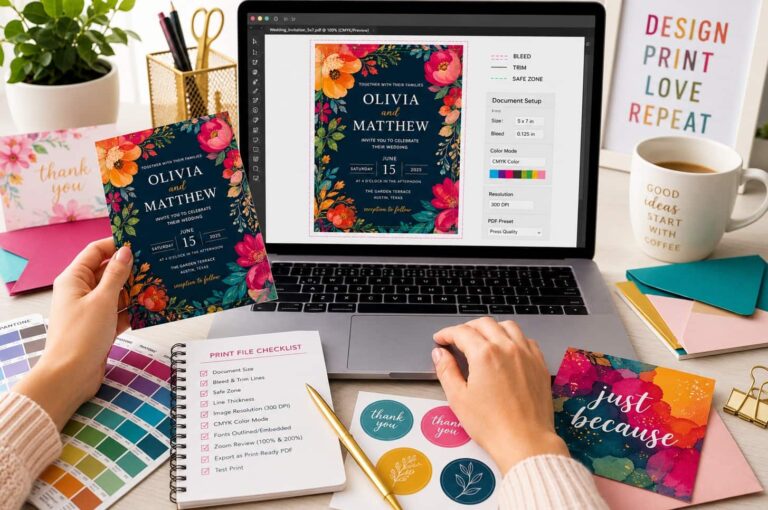
Selling stationery online takes more than creative designs. The quality of your prints depends on how you prepare your files for production. Mistakes like wrong bleed settings, low-resolution images, or incorrect color modes can affect how your invitations, greeting cards, or stickers look. These problems often come up when moving designs from your computer to paper. If you double-check your file settings before printing, you can avoid common errors, keep your products consistent, and make sure everything turns out as you planned.
At PrintPlace, we’ve put together a simple checklist to help you review your design before you finish it. This way, you can make sure your file settings match how you want your prints to look.
Begin by making sure your file matches the exact final size of your product.
For example, if you’re making a greeting card that prints at 5″ x 7″, set your file to exactly 5″ x 7″. The same goes for thank you cards or note cards. You should also know how your print providers measure your prints. Check whether the measurements are in inches or cm and adjust accordingly.
This way, the printer won’t need to resize your file, so your design stays clear and properly aligned.
Practical tip:
Save templates for each product size you offer. This will save you time and help avoid accidental size changes.
Bleed means adding extra space around your design, usually about 0.125 inches on each side.
This way, when your cards or invitations are trimmed, the color or design will go all the way to the edge.
If you don’t use bleed, even a small shift during trimming can leave white borders or make the edges uneven.
Here’s what you should do:
Safe zones make sure important design elements do not end up too close to the trimmed edges. They matter even more for centered layouts or thin borders, since small shifts are easier to spot once printed. Always keep text, logos, and key details at least 0.125 to 0.25 inches inside the final cut line.
This matters most for:
Very thin lines and small details can fade, break, or print unevenly. To make sure decorative borders, illustrations, and detailed stationery look sharp, use line weights thicker than 0.25 pt.
Printed materials need a higher resolution than digital screens.
If you are making stickers or illustrated note cards, keeping a high resolution is important for sharp lines and clear details. If an image looks a bit blurry on your screen when you zoom in, it will probably print that way too.
Screens show colors with RGB, while printers use CMYK. Because of this, your designs might look different when printed.
For example:
What helps:
If a font is missing or not supported when printing, your final product might look different. To keep your spacing, alignment, and typography consistent, outline your text or embed your fonts before exporting your file.
When exporting a PDF, check for settings called “Embed Fonts” or “Include Fonts.” Most design programs have this option in the PDF export or print settings menu.
Looking at your artwork at different zoom levels can help you catch visual issues before printing. Viewing at 100% shows the actual print size, while 200% makes it easier to notice spacing, pixelation, or alignment issues that could affect the final result.
Here’s what you need to do:
Saving your files as print-ready PDFs helps keep your design looking the way you want during printing. PDFs do a better job than JPG or PNG files of keeping your layout, image quality, fonts, and spacing consistent, since other formats might compress your artwork or display it differently across printers.
As part of proofing and finalizing your work, print sample stationery to see how things like paper type and coating can change the final look.
Print a small batch of stationery and check the color, texture, and finish. This step is especially helpful when you launch new products like invitations or add sticker lines.
The materials you choose are just as important before completing a full run. Knowing how to pick the right paper helps you get consistent results for greeting cards, note cards, and stickers.
If you sell stationery directly to customers, consistency is key to your brand. People want the thank-you card they reorder to match the one they got the first time.
Even small improvements in how you set up your files can make a real difference for your business.
If you sell greeting cards, note cards, invitations, stickers, or other stationery, these small changes add up over time. What begins as a technical fix can turn into a smoother and more scalable workflow.
As you add more products, especially premium ones like wedding invitations, it helps to learn about common foil and letterpress mistakes. Avoiding these can save you from costly reprints.
Consistent print quality starts with consistent file preparation. Reviewing bleed settings, safe zones, image resolution, fonts, and export formats before production helps reduce avoidable printing issues and keeps stationery products looking professional across every order. For online sellers, these small technical checks can improve efficiency, reduce reprints, and create a more reliable customer experience. By building a repeatable pre-print process into your workflow, businesses using platforms like PrintPlace can maintain stronger quality control while scaling their stationery products more confidently.
PrintPlace’s mission is to provide customers with unparalleled printing services through the knowledge and expertise of its employees.